How to use HALA MOVE
Each guide follows the real screens, one step at a time: booking a delivery on the web, paying cash at a store's till, running a business account, delivering from an online store, and watching a fleet.
Names, addresses and amounts on these screens are examples.
- Book a delivery on the webFor anyone sending goods, from any phone or computer.
- Pay cash at a store's tillFor shoppers at a store with our sign, and its cashier.
- Run a business accountFor companies that book on account and pay one invoice a week.
- Deliver from your online storeFor company accounts that sell on a WooCommerce website.
- Watch your fleetFor fleet owners whose drivers deliver on HALA MOVE.
Book a delivery on the web
It runs in the browser on any phone or computer, with no app to install. Sign in with your email or mobile number.
Swipe for the next step.
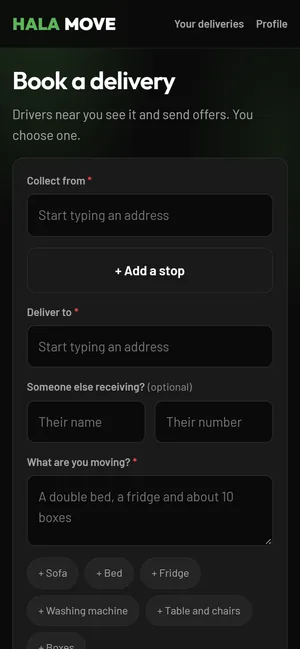
Say where to collect it and where it goes. Start typing and pick the address from the list. 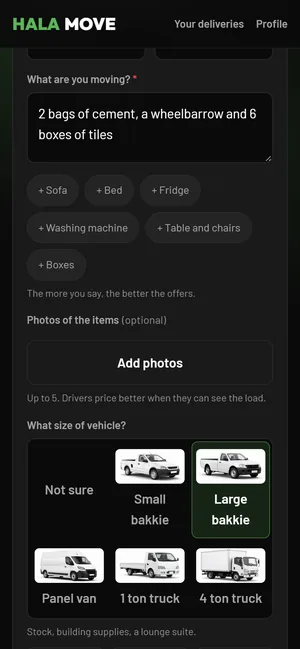
Say what you are sending and choose the size of vehicle. Photos help drivers price it. 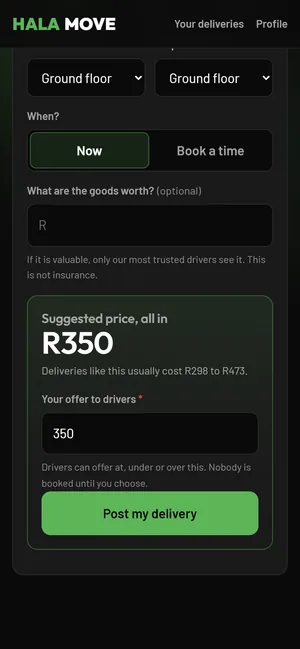
See the suggested price, all in. Set your offer and post it; no driver is booked until you choose one. 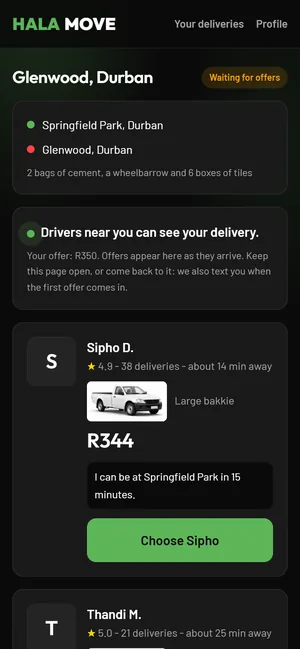
Checked drivers near you send offers, each with their rating, deliveries done and how far away they are. 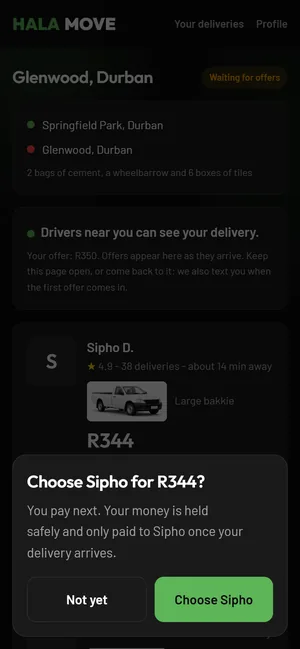
Choose the offer you want, then confirm it. 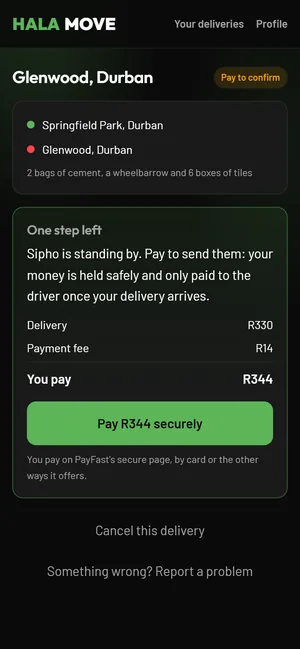
Pay on PayFast's secure page. Your money is held, and paid to the driver only once your delivery arrives. 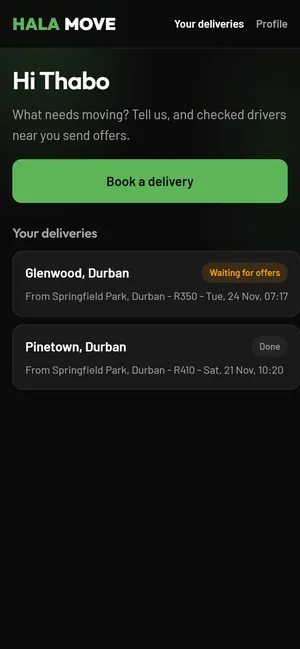
Follow each delivery under Your deliveries.
Pay cash at a store's till
A store with the HALA MOVE sign at its till sends your goods home with a checked driver. You pay the fixed price in cash at the till.
Swipe for the next step.
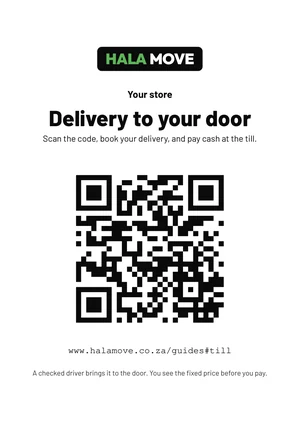
At the till, scan the sign with your phone's camera. 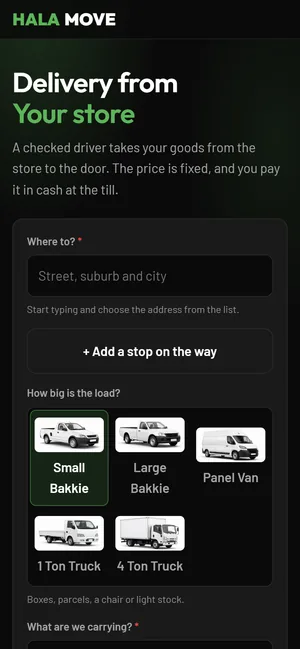
Say where it is going and what you are carrying. The store is the pickup, and the price is fixed. 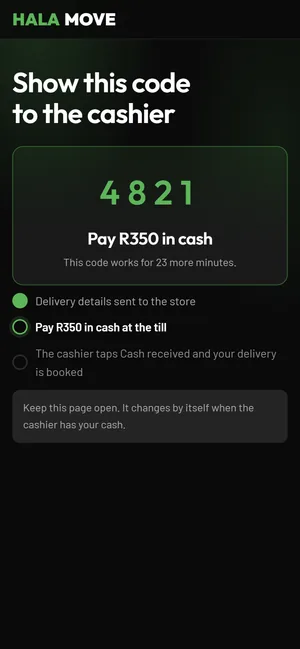
Show your code to the cashier and pay the price in cash. 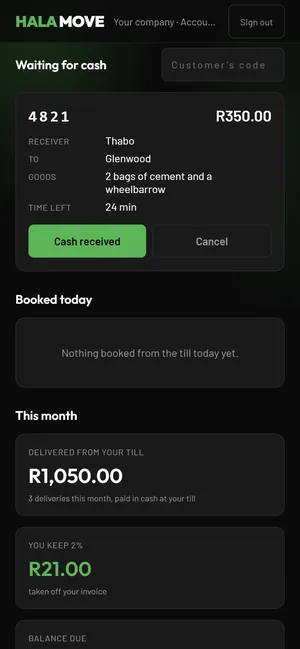
The cashier finds your code under Waiting for cash and taps Cash received. Your delivery is booked.
Run a business account
For companies that book deliveries on account and pay one invoice a week. We set up your account and send you the sign-in.
Swipe for the next step.
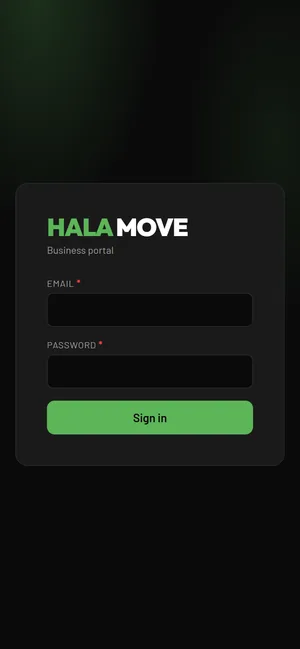
Sign in to your dashboard at admin.halamove.co.za/business with the email and password we send you. 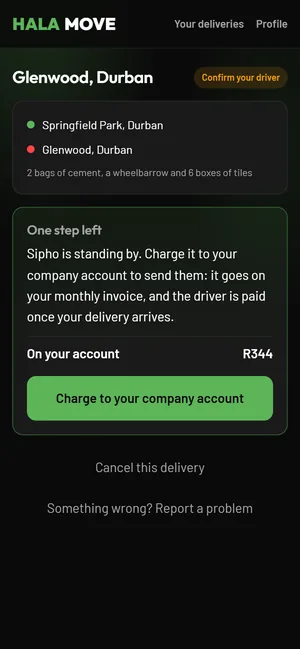
Book on the booking page like anyone else. Once you choose a driver, charge it to your company account. 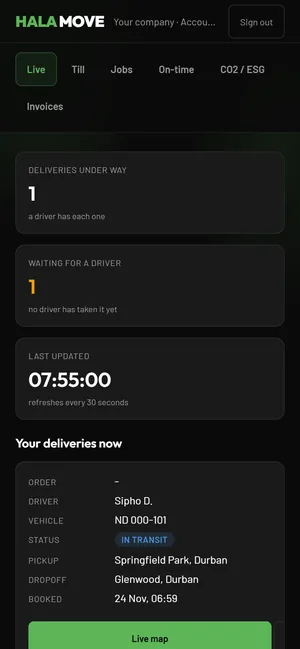
See every delivery under way, and how much of your spending limit is left. 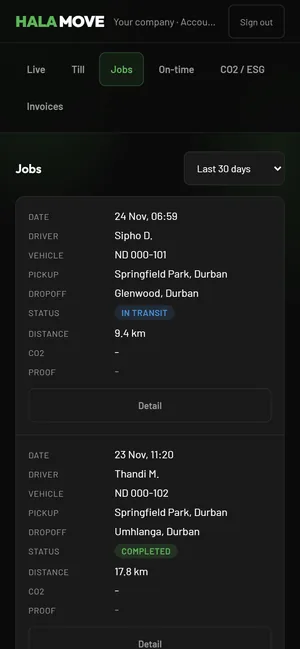
Every delivery your company booked, with its driver, vehicle, route and status. 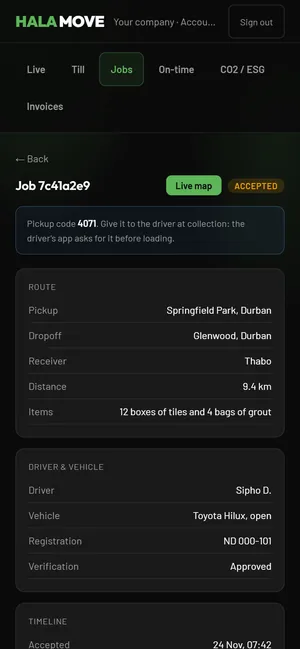
Open one for its route, its driver and the pickup code your team gives the driver at collection. 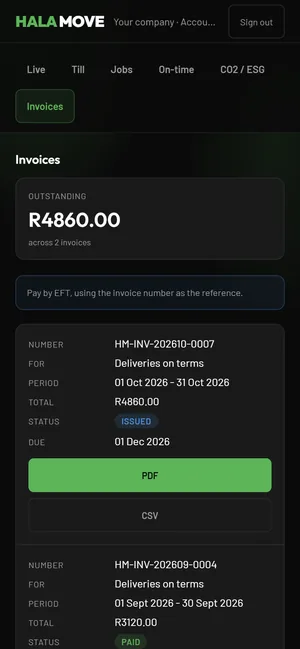
One invoice each Monday, for the week before. Download it as a PDF or CSV, and pay by EFT within 7 days with the invoice number as the reference.
Deliver from your online store
For company accounts that sell on a WooCommerce website, version 7.1 or later. We set up your store with you first; then the account owner makes the key. Shoppers see the delivery price for their address at checkout, and each paid order books its own delivery on your account.
Swipe for the next step.
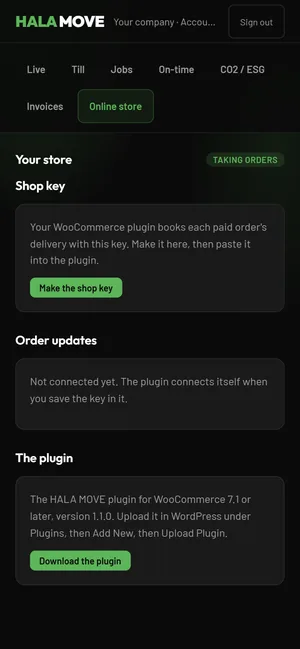
Open Online store in your dashboard. Download the plugin, then tap Make the shop key. 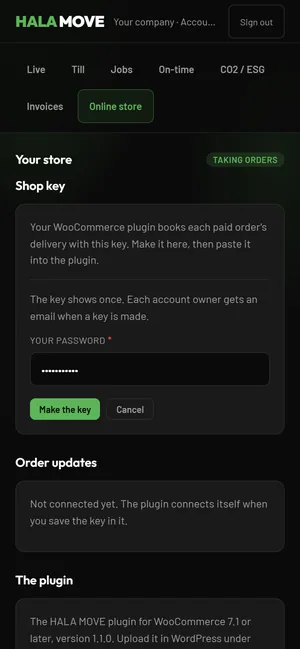
Enter your password again. Every account owner gets an email when a key is made. 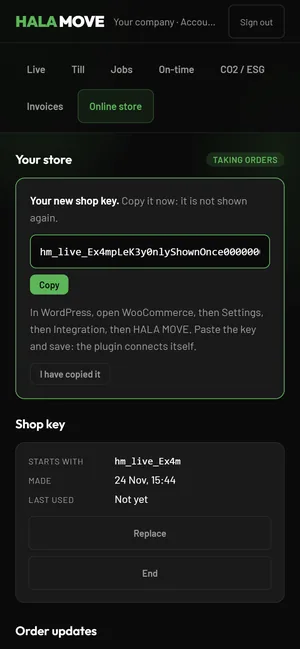
Copy your shop key: it shows once. In WordPress, upload the plugin under Plugins, Add New, Upload Plugin. Paste the key under WooCommerce, Settings, Integration, HALA MOVE, and save. 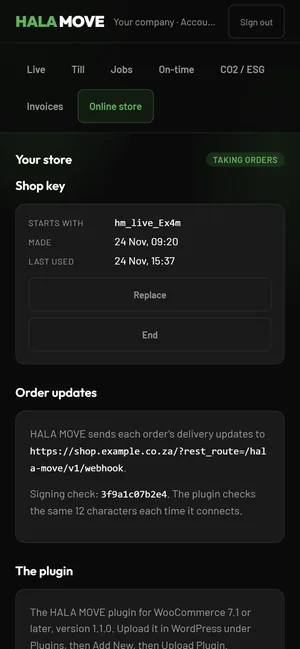
The plugin connects itself. Your dashboard then shows the key in use and where order updates go. 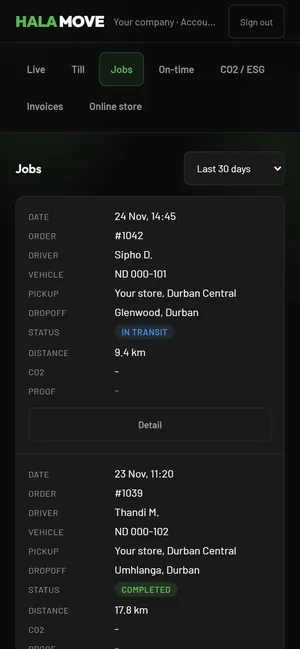
Add HALA MOVE delivery to your shipping zone under WooCommerce, Settings, Shipping. Each paid order then books its own delivery and shows in Jobs with its order number.
Watch your fleet
For fleet owners whose drivers deliver on HALA MOVE. Each driver is paid directly; your dashboard shows their work and earnings.
Swipe for the next step.
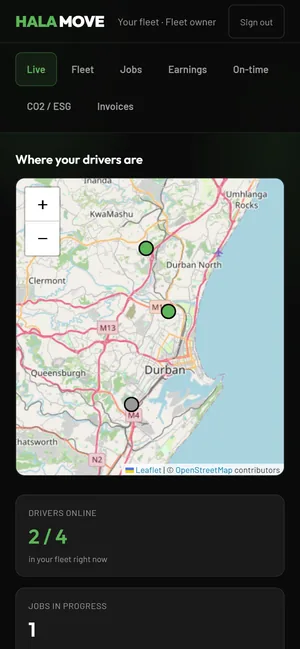
See where your drivers are, and how many are online right now. 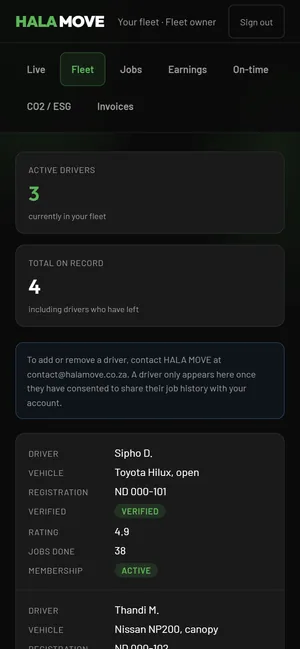
Your drivers, their vehicles, ratings and checks. A driver appears once they agree to share their job history with you. 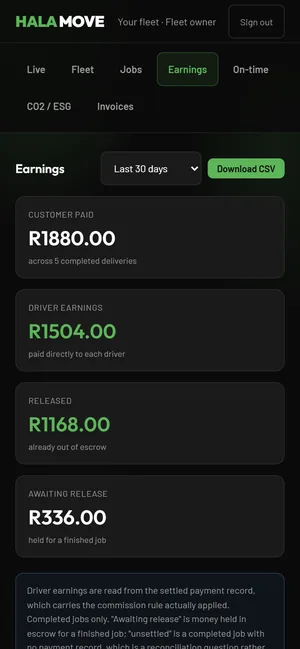
What customers paid and what each driver earned, released or still held. Download it as a CSV.
Ask us anything
Write to contact@halamove.co.za, or read the questions people ask most.